
Body Care
How to Reset a HTC Smartphone when Locked Out: 8 Steps
Jul
Being locked out of an HTC smartphone can feel like standing outside your own house while watching the keys through the window. The phone is right there, your photos are right there, and yet one forgotten PIN has turned a familiar device into a very expensive alarm clock.
When the correct password, PIN, or pattern cannot be recovered, a factory reset may restore access to the device. However, resetting a locked HTC phone erases the data stored in its internal memory. It also does not remove Google’s ownership protection. After the reset, you may still need to sign in with a Google Account that was previously synchronized with the phone.
This guide explains how to reset a locked HTC smartphone in eight practical steps, including instructions for older HTC models, newer devices with Download Mode, and pressure-sensitive phones such as the HTC U12+. It also covers Google Find Hub, Factory Reset Protection, common errors, and real-world lessons that can save you from turning a small problem into a pocket-sized catastrophe.
Research basis:
What Happens When You Factory Reset a Locked HTC Phone?
A factory reset deletes user data from the phone’s internal storage and returns the software settings to their original state. Depending on the HTC model and Android version, the reset normally removes:
- The screen-lock PIN, password, or pattern
- Installed applications and their local data
- Text messages and call history stored on the phone
- Photos, videos, downloads, and documents in internal storage
- Saved Wi-Fi networks, preferences, and personalized settings
- Google, email, social media, and other accounts added to the device
A factory reset usually does not erase information already synchronized with Google, such as backed-up contacts, Google Photos items, calendar events, and supported application data. Those items may return after you sign in again. Data that was never backed up, however, may disappear permanently. The phone is not being dramatic; “erase” really does mean erase.
A Reset Removes the Screen Lock, Not Ownership Protection
Most HTC smartphones running Android 5.0 or later support Android Device Protection, commonly associated with Factory Reset Protection, or FRP. When a protected phone is reset through its hardware buttons, the setup process may request a Google Account that was previously added and synchronized on that device.
This means a factory reset can remove the forgotten screen lock, but it cannot turn an unknown or stolen phone into a usable device. Before beginning, confirm that you know the Google email address and password previously used on the HTC phone.
Research basis:
Before Resetting Your Locked HTC Smartphone
Spend a few minutes preparing before entering Recovery Mode. This is much easier than discovering halfway through the process that the battery has 2% remaining and the charger is apparently vacationing in another state.
Confirm Your Google Account Credentials
Use another phone or computer to verify that you can sign in to the Google Account associated with the locked HTC device. If you have forgotten the password, complete Google Account recovery before resetting the phone.
Also check whether two-step verification depends on the locked HTC phone. Make sure you have another verification method, such as a backup code, recovery email address, trusted device, security key, or accessible phone number.
Charge the Battery
HTC recommends that supported devices have at least 35% battery power before a hardware reset or remain connected to a compatible charger. A higher charge level is even better. Losing power while the phone is processing system commands can cause additional startup problems.
Remove the Memory Card When Appropriate
If the phone has a removable microSD card, take it out before the reset unless your model’s instructions specifically require otherwise. Some reset menus offer an additional option to erase external storage. Removing the card prevents an enthusiastic button press from wiping your vacation photos along with your forgotten PIN.
Identify the Exact HTC Model
HTC used several bootloader and recovery designs across devices such as the HTC One series, HTC 10, HTC Bolt, HTC Desire, HTC U11, HTC U12+, and HTC Exodus 1. The general process is similar, but the button timing and menu names can differ.
The model name may be printed on the original box, purchase receipt, SIM tray, rear housing, or carrier account. You may also find it in the list of devices connected to your Google Account.
Research basis:
How to Reset a HTC Smartphone When Locked Out in 8 Steps
Step 1: Try a Normal Restart First
Restart the HTC smartphone before performing a factory reset. A restart will not remove a forgotten PIN, but it can resolve a frozen lock screen, an unresponsive keyboard, or a temporary software error.
Hold the Power button and select Restart if the power menu appears. If the screen is unresponsive, press and hold the Power button for approximately 10 to 15 seconds. Some HTC models require Power and Volume Up to be held together until the phone restarts.
After rebooting, carefully enter the PIN, password, or pattern again. Check capitalization, keyboard language, and accidental spaces. Do not repeatedly guess random combinations because Android may increase the waiting period between attempts.
Step 2: Turn the HTC Phone Completely Off
If the correct screen lock cannot be recovered, power off the device. Hold the Power button and choose Power off. When the lock screen prevents access to the power menu, continue holding the Power button until the display turns black.
Wait several seconds after the screen goes dark. If the phone immediately restarts, hold the required boot-button combination as soon as it begins powering on.
Step 3: Enter the Bootloader or Download Mode
For most HTC smartphones, press and hold Power + Volume Down. Release the buttons when the bootloader, Download Mode, or a menu containing Android images appears.
Some older HTC devices use a slightly different sequence: hold Volume Down first, press Power, and continue holding Volume Down until the menu appears. A few models may require Volume Up instead of Volume Down.
Pressure-sensitive models such as the HTC U12+ and HTC Exodus 1 require special timing. Press and hold Power. When the phone vibrates, release Power and immediately press Volume Down. Continue until the Download Mode screen appears.
If the phone starts normally, turn it off and try again. The most common problem is releasing the volume button too early.
Step 4: Navigate to Recovery Mode or Factory Reset
The touchscreen generally does not work in the bootloader. Use the Volume buttons to move through the menu and press Power to select an option.
On newer HTC devices, highlight Reboot to bootloader if it appears, press Power, and then select Boot to Recovery Mode. Menu wording may vary slightly by model or carrier software.
Some older HTC phones present a direct Factory Reset option on the first bootloader screen. If your phone displays that option, highlight it with Volume Down and select it with Power. Do not experiment with unrelated choices such as bootloader unlocking, image flashing, or diagnostic commands.
Step 5: Open the Android Recovery Menu
After selecting Recovery Mode, the HTC phone may show an Android figure, a red triangle, or an exclamation mark. This screen looks alarming, but it usually means the device is waiting for the correct button command.
On most HTC phones, hold the Power button and press Volume Up to display the Android Recovery menu. On pressure-sensitive devices such as the HTC U12+, hold Volume Up according to the on-screen or model-specific instructions.
If nothing happens, release the buttons and repeat the combination. Try pressing Volume Up briefly while continuing to hold Power rather than holding both buttons for an extended period.
Step 6: Select “Wipe Data/Factory Reset”
Use Volume Down to highlight Wipe data/factory reset. Press Power to select it. The phone may display a confirmation screen containing options such as Yes, Factory data reset, or Delete all user data.
Read the highlighted option carefully before confirming. Recovery menus are not a good place to practice speed-reading. Select the reset confirmation with the Volume buttons, then press Power.
The HTC smartphone will begin deleting its user data. This may take several minutes. Do not disconnect the charger, press random buttons, or force the phone to shut down during the process.
Step 7: Reboot the HTC Smartphone
When the reset is complete, the Recovery menu should return with Reboot system now highlighted. Press Power to restart the phone.
The first boot after a factory reset often takes longer than a normal startup because Android must rebuild system files and prepare the setup environment. Allow the device several minutes to reach the welcome screen.
If the phone returns to Recovery Mode, select Reboot system now again. If it repeatedly loops back to the HTC logo or recovery screen, charge it, repeat the reset once, and then seek model-specific HTC or carrier support.
Step 8: Verify Ownership and Restore Your Information
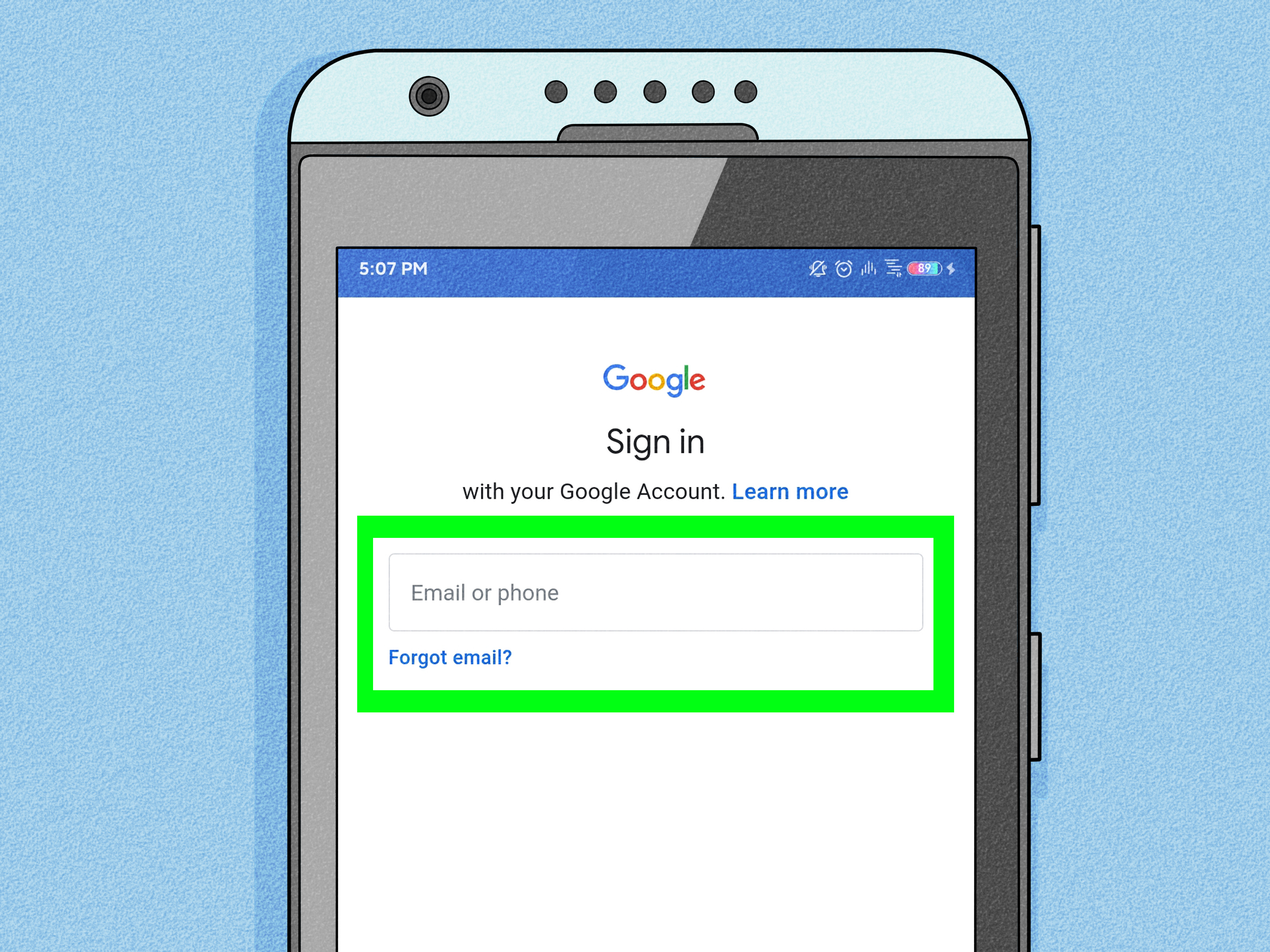
Follow the setup prompts to choose a language, connect to Wi-Fi, and review the terms of service. When Factory Reset Protection is active, enter a Google Account that was previously synchronized with the device.
After successful verification, Android may offer to restore contacts, applications, settings, and backed-up data. Choose the most recent relevant backup rather than automatically restoring every application the phone has met since the invention of Wi-Fi.
Create a new screen lock that is secure but memorable. Record it in a trusted password manager instead of writing it on a sticky note attached to the phone, which is the security equivalent of hiding a house key under a sign labeled “house key.”
Hardware procedures synthesized from multiple HTC model guides:
Alternative Method: Reset the HTC Phone with Google Find Hub
If the HTC smartphone is powered on, connected to Wi-Fi or mobile data, signed in to your Google Account, visible in Google Play, and configured for Google’s device-finding service, you may be able to erase it remotely.
- Open Google Find Hub on another Android device or through a web browser.
- Sign in with the Google Account connected to the locked HTC phone.
- Select the correct HTC device from the available device list.
- Open the device settings or reset options.
- Choose the factory-reset or erase-device command.
- Confirm the request after reviewing the warning.
The erase command permanently deletes data from the phone when it can communicate with Google’s service. It may not erase an installed SD card. After the reset, the phone’s location will no longer be available in Find Hub.
Remote erasing is most useful for a lost phone or a device with damaged buttons. It is not guaranteed to work if the HTC smartphone is offline, powered off for an extended period, removed from the Google Account, or not previously configured for Find Hub.
Research basis:
What to Do When the HTC Factory Reset Does Not Work
The Bootloader Menu Never Appears
Charge the phone for at least 30 minutes and try the button combination again. Remove a thick protective case that may prevent the buttons from being fully pressed. Confirm that both the Power and Volume buttons physically click and respond.
For older HTC models, hold Volume Down before pressing Power. For the HTC U12+ or another pressure-sensitive model, use the vibration-timing method instead of holding Power and Volume Down simultaneously.
The Phone Shows a Red Triangle
The red triangle normally indicates that Recovery Mode has loaded but the menu is hidden. Hold Power and briefly press Volume Up. On certain pressure-sensitive HTC phones, holding Volume Up alone may reveal the recovery options.
The Phone Requests the Previous Google Account
This is Factory Reset Protection working as intended. Enter a Google Account that was previously added and synchronized with the HTC phone. A newly created Google Account will not satisfy the ownership check.
If the password was recently changed, complete any security waiting period shown by Google and try again later. Use Google’s official account-recovery process when you cannot remember the email address or password.
The Phone Is Stuck on the HTC Logo
Leave the phone connected to power for several minutes because the first startup may be slow. If it remains stuck, return to Recovery Mode and repeat the factory reset once. Continued boot looping may indicate corrupted system software, failing internal storage, a weak battery, or another hardware problem.
The Volume or Power Button Is Broken
Try Google Find Hub if remote erasing was previously enabled. Otherwise, contact an authorized repair provider or the carrier that originally sold the device. A technician may need to repair the button assembly before Recovery Mode can be controlled.
Practical Experiences and Lessons from Resetting Locked HTC Phones
Real-world HTC reset problems are rarely caused by the actual factory-reset command. The trouble usually begins one or two steps earlier: an unidentified model, poor button timing, a nearly empty battery, or a forgotten Google Account. Understanding these common experiences makes the process far less intimidating.
Experience 1: Button Timing Matters More Than Finger Strength
A frequent mistake is pressing Power and Volume Down as hard as possible while hoping determination will impress the phone. It will not. HTC boot menus depend on timing rather than force.
On conventional models, the best approach is to power off fully, press and hold Volume Down, and then press Power. Keep holding until the menu appears. On newer models, holding both buttons simultaneously may work. On the HTC U12+, waiting for the vibration and immediately switching to Volume Down is the critical detail.
When the phone boots normally, that does not mean Recovery Mode is broken. It usually means one button was released a second too early. Trying again slowly often solves the problem.
Experience 2: The Forgotten Google Account Is the Real Lock
Many owners focus entirely on removing the screen PIN. They successfully erase the phone, celebrate for approximately 45 seconds, and then meet the Google verification screen.
Before resetting, test the Google Account on another device. Search old Gmail messages, application receipts, YouTube activity, or Google Photos libraries to identify which email address was used. Confirm that the password works and that account recovery does not depend exclusively on the locked phone.
This preparation is especially important when resetting an HTC phone for a relative. The account on the device may belong to the person who originally configured it rather than its current everyday user.
Experience 3: A Factory Reset Is Not a Data-Recovery Method
A reset restores access to the hardware by deleting the information that created the lock. It does not rescue local photos, messages, voice recordings, or documents first. Anyone who needs irreplaceable data should pause before confirming the wipe.
Check Google Photos, Google Contacts, Google Drive, carrier cloud services, social media uploads, messaging backups, and computer folders for synchronized copies. An old microSD card may also contain photos or downloads that are not stored internally.
Claims that a random desktop application can both bypass the lock and preserve encrypted data should be treated with skepticism. Modern Android storage encryption is designed specifically to prevent access without valid credentials.
Experience 4: The First Reboot Can Look Suspiciously Slow
After the reset, an HTC smartphone may remain on its startup logo longer than expected. Owners sometimes assume the procedure failed and force the phone off, interrupting the setup process.
Leave the device connected to its charger and give it time to finish. A first boot that takes several minutes can be normal. Repeatedly restarting the phone generally does not make Android work faster; it merely gives the logo additional opportunities to become part of the family.
Experience 5: Restoring Everything Can Restore the Original Problem
Once the HTC phone is working, Android may offer to reinstall dozens of applications automatically. Restoring all of them is convenient, but it can also reintroduce outdated software, battery-draining utilities, aggressive launchers, or applications that previously caused crashes.
For an older HTC smartphone, restore essential information first and install applications gradually. Update the operating system and Google Play components when supported. Monitor battery life and stability before adding more software.
Experience 6: Write Down the New Recovery Plan
The best time to prepare for the next lockout is immediately after recovering from the current one. Add a recovery email and phone number to the Google Account, save backup verification codes, enable Find Hub, and store the new PIN in a reputable password manager.
Also verify that contacts and photos are actually synchronizing. A backup icon is reassuring, but a backup you have tested is much more useful. Open the cloud account from another device and confirm that recent items are present.
These small steps turn a future lockout from a digital emergency into an inconvenience. The HTC phone may still forget who you are, but at least Google, your password manager, and your backup plan will remember.
Conclusion
Resetting a locked HTC smartphone is possible even when the Settings application cannot be opened. The safest method is to identify the exact HTC model, confirm the previous Google Account credentials, charge the battery, enter the bootloader or Recovery Mode, and carefully select the factory-reset command.
Most HTC smartphones use Power and Volume Down to open the boot menu, although older models and pressure-sensitive devices may require different timing. After the reset, expect Google to verify ownership before allowing the phone to complete setup.
A factory reset should remain the final option because it deletes local data. When backups are available and the account credentials are known, however, these eight steps can return a locked HTC phone to working condition without mysterious software, risky shortcuts, or a ceremonial toss into the nearest desk drawer.

