
Beauty Unlocked
How to Create a Google Profile for Yourself or Your Business
Jun
“Create a Google Profile” sounds simpleuntil you realize it can mean at least three different things.
The good news: you don’t need to be a wizard, a marketer, or a person who enjoys CAPTCHAs to get it done.
You just need the right kind of profile for your goal, and a few smart choices so Google (and real humans) can trust what they see.
This guide walks you through building a personal Google presence, a Google Business Profile (the one that shows up on Search and Maps),
and a couple of optional “bonus levels” that can make you look extra legitimatewithout acting like a keyword-stuffing robot.
What “Google Profile” Means (So You Build the Right Thing)
People say “Google profile” the way they say “I’m going to the store.” Which store? For what? For emotional support snacks?
Google has a few profile-like surfaces, and choosing the right one saves time and prevents “Why isn’t this showing up?” spirals.
1) Personal Google Profile (Google Account Profile)
This is the basic identity attached to your Google Accountyour name, profile photo, and some personal info settings.
It shows up across Google products (like Gmail, YouTube comments, Google Meet, shared Google Docs, and more),
depending on your privacy and sharing settings.
2) Google Business Profile (formerly Google My Business)
This is your business listing that appears on Google Search and Google Maps. It’s the one with your hours, address or service area,
photos, reviews, and the “Call” button. If your goal is customers, local visibility, and credibility, this is the profile you want.
3) Optional “Search Identity” Boosters
- Knowledge Panel claim (if Google already shows a panel for you or your business)
- People Card (“Add me to Search”) (available only in certain regions)
- Website signals (like clear About pages and structured data) that help Google connect the dots
Now let’s build the right profile(s) the right way.
Create a Google Profile for Yourself (Personal)
Your personal Google profile is the foundation. Even if you’re making a business listing, you’ll usually manage it with a Google Account
so it’s worth making your account look like an actual human (or at least a responsible business owner).
Step 1: Create (or choose) the right Google Account
If you’re doing this for business, don’t use your ex-roommate’s shared Gmail from 2017. Create a dedicated Google Account
(or use a work account you control). For teams, consider a shared inbox managed by the business (with strong security),
so the profile doesn’t vanish when someone quits dramatically on a Tuesday.
- Personal brand: your real name account is fine.
- Business management: use an account owned by the business, not one person’s “forever email.”
Step 2: Update your name and profile photo
Go to your Google Account settings and update your basic info:
a clear headshot (or a clean logo if it’s business-facing), and a name that matches how people search for you.
If you’re a professional, consistency matters: “Jonathan A. Smith” on LinkedIn and “LilJonny_88” on Google is… a vibe,
but not the kind that builds trust.
Example: If clients know you as “Dr. Maya Patel,” use that format consistently on your site bio,
professional profiles, and Google-facing surfaces (without adding spammy keywords like “Best Doctor In America OMG”).
Step 3: Choose what’s visible (privacy without disappearing)
Google lets you manage what personal details are shown in different contexts. For most people, the sweet spot is:
a professional photo, accurate name, and minimal extras. You want to look realnot like you’re trying to win hide-and-seek championships.
Step 4: Build a “search-ready” personal presence (without being cringe)
Google learns about people from what’s consistently published across the web. If you want your name to surface cleanly,
create a simple “identity trail”:
- A basic personal site or bio page (even a one-page portfolio) with your name, role, and a short bio.
- A matching About section on any site you publish on (author pages help).
- Consistent social links (LinkedIn, portfolio, YouTube, or wherever your professional life exists).
- A consistent headshot across major platforms, so it’s visually obvious it’s you.
Think of it like setting up street signs in your own neighborhood: Google can connect your identity faster when everything points to the same person.
Step 5 (Optional): Claim your Knowledge Panel if you have one
If you search your name (or brand name) and Google shows a knowledge panel, you may be able to claim it.
That doesn’t mean you can rewrite reality, but it can let you suggest edits and manage certain elements.
- Search for yourself (or the entity you represent) on Google.
- Find the knowledge panel on the results page.
- Click “Claim this knowledge panel” (often near the bottom of the panel).
- Follow the verification prompts to prove you’re authorized.
Step 6 (Optional): “Add me to Search” (People Card) if it’s available to you
In some regions, Google offers a People Card feature that lets individuals create a searchable card with basic information.
Availability is limited, and it may not appear in every country or language setting. If you can access it, keep it professional:
short bio, accurate role, and links you’re proud of.
If you don’t have access, don’t panic. A strong personal site + consistent public profiles is usually the better long-term play anyway.
Create a Google Profile for Your Business (Google Business Profile)
If you want customers to find you on Search and Maps, this is the main event.
A well-built Google Business Profile is like a digital storefront: it answers the “Should I trust this business?” question fast.
Step 1: Decide what type of business you’re listing
Before you start, be clear about what customers can actually do in the real world:
- Storefront: customers visit your location (restaurant, salon, retail store).
- Service-area business: you go to customers (plumber, mobile pet groomer, cleaning service).
- Hybrid: you have a location and also serve customers elsewhere.
This matters because your address, service area settings, and verification options depend on your setup.
Step 2: Create or claim the listing
Start by searching your business name on Google. If a profile already exists, you may see an option to claim ownership.
If nothing exists, you can create a new profile through Google’s Business Profile setup flow.
- Go to the Business Profile creation flow (commonly reached through the Google Business Profile site).
- Enter your business name.
- If Google suggests an existing listing, select it (if it’s yours) and request ownership.
- If not, choose the option to add your business and proceed.
Step 3: Enter your core business info (the “trust layer”)
Google cares about consistency. Customers care about not driving to a closed location. So keep your details accurate and boringin a good way.
- Business name: use your real-world name as used on signage and your website (avoid extra keywords).
- Category: choose the closest primary category (think “This business IS a…” not “this business HAS…”).
- Address or service area: use a real, eligible address if you’re a storefront; set a service area if you travel to customers.
- Hours: include regular hours and special holiday hours.
- Phone and website: use the best customer-facing contact points (and keep them consistent across the web).
Specific example: If you run “Lakeside Heating & Air,” don’t name your profile
“Lakeside Heating & Air | Best HVAC Repair Dallas 24/7.” That’s the fastest way to invite edits, suspensions, or “Why did Google do this to me?” emails.
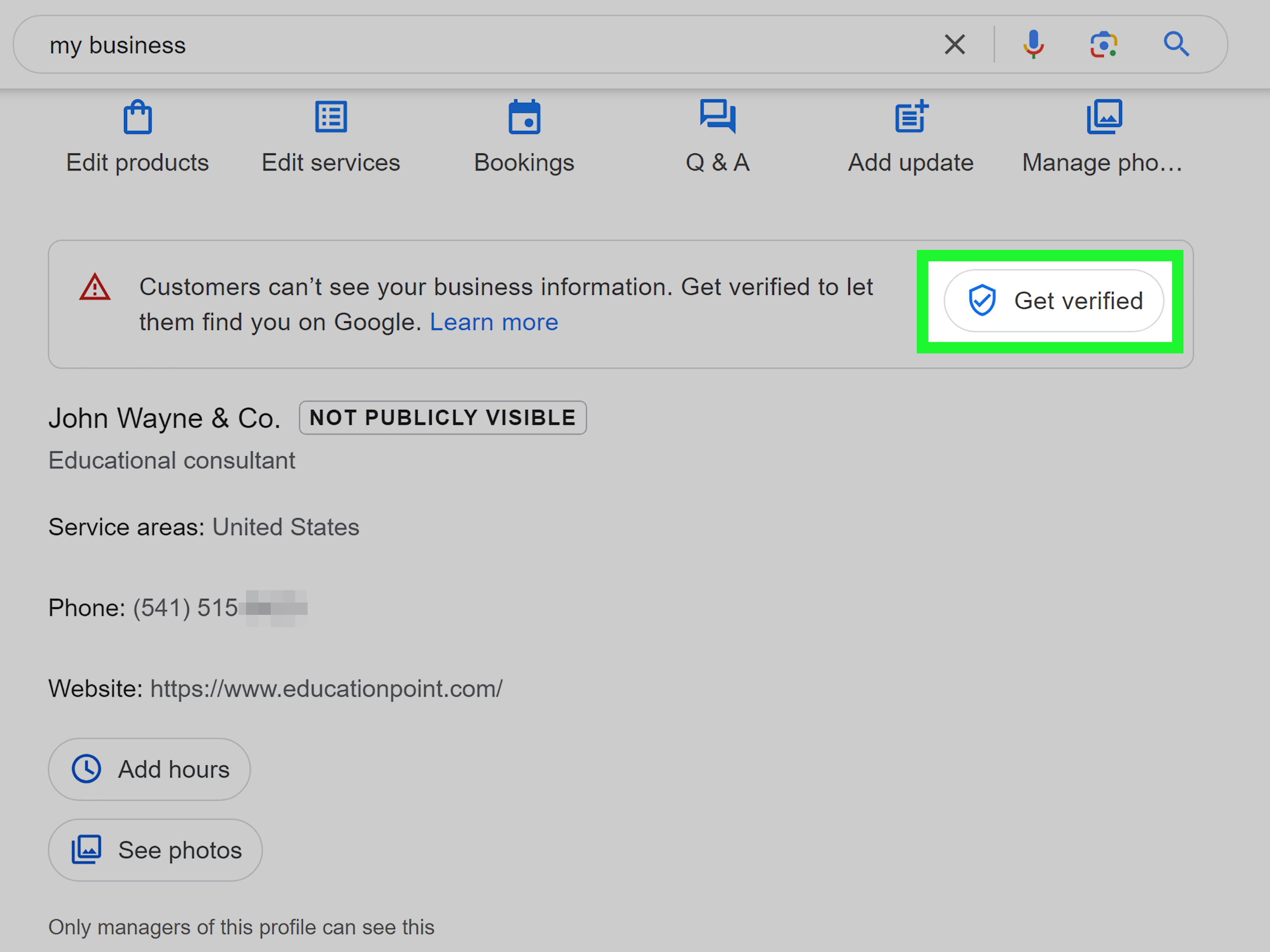
Step 4: Verify your business (the gate you must walk through)
Verification proves you’re authorized to manage the listing. Google determines the available verification methods automatically,
based on business type, category, public info, region, and other signals. In some cases, more than one method may be required.
Common verification methods include:
- Phone or text (when offered)
- Email (when offered)
- Postcard by mail (classic, slow, weirdly nostalgic)
- Video recording or live video call (to show signage, location, and proof of operations)
- Search Console-related verification (for some eligible businesses connected to verified websites)
Troubleshooting tips that save sanity:
- Match reality: signage, address details, and website info should align.
- Be reachable: if phone verification is offered, make sure someone can answer quickly.
- For video: show your location (street signs if relevant), your work tools, and proof you operate there legally.
- Don’t keep editing major fields mid-verification: frequent changes can trigger delays or re-checks.
Step 5: Optimize your profile so it actually wins clicks
Verification gets you on the board. Optimization gets you chosen.
After you’re verified (or while waiting, where allowed), fill out these sections thoughtfully:
Write a helpful business description
Explain what you do, who you serve, and what makes you differentlike a human.
Mention your core services naturally. Skip the “We are the leading premier best top #1…” word soup.
Mini-template (human edition): “We help who with what in where.
Known for signature strength. Visit us / book online / call for next step.”
Add services, products, and attributes
If you’re a service business, list your main services clearly. If you sell products, add key items customers ask about most.
Attributes (like “wheelchair accessible” or “women-led” where available) can help customers choose you faster.
Upload photos that look like your business, not a stock-photo soap opera
- Storefront: exterior (so customers recognize it), interior, team, best-selling items.
- Service-area: branded vehicle, team in action (professional), before/after (when appropriate), tools, finished work.
The goal isn’t “perfect.” It’s “real and trustworthy.” Clear beats glossy.
Use Posts/Updates when it makes sense
Depending on your category and features available in your account, you may be able to publish updates, offers, or events
to keep your listing fresh. For restaurants and bars, Google has tested additional ways to highlight time-sensitive specials and events in certain markets.
If you can use these features, keep posts short, visual, and action-oriented.
Step 6: Reviews, Q&A, and messages (your public customer service desk)
Reviews don’t just influence rankingsthey influence humans. And humans, famously, buy from businesses they trust.
- Ask for reviews ethically: after a successful job or purchase, send a simple follow-up.
- Respond to reviews: thank happy customers; address negative feedback calmly and specifically.
- Monitor Q&A: answer common questions before random strangers answer them for you.
- Messaging (if enabled): respond quickly or turn it offnothing says “we care” like ignoring messages for six days.
Step 7: Strengthen your profile with website signals (quiet SEO power)
Google Business Profile is huge, but your website helps confirm your legitimacyespecially when your name, address, and services match.
If you have a site, make sure it has:
- A clear Contact page with matching phone/address/service area info
- A strong About page (who you are, what you do, where you operate)
- Basic LocalBusiness structured data (or equivalent) where appropriate
Step 8: Invite the right people (and only the right people)
If you work with an agency or staff, grant access carefully. Use role-based access so the wrong person can’t “accidentally”
change your category to “Haunted House” because your office is cold.
Common Mistakes That Break Trust (and Rankings)
Here’s what causes the most painusually because it feels harmless in the moment.
Mistake 1: Stuffing keywords into the business name
It might look like a shortcut, but it often backfires. Your name should match real-world branding and signage.
Keyword-stuffing can lead to edits, suppression, or verification issues.
Mistake 2: Using an ineligible address
If you’re a service-area business operating from home, follow the rules for service areas instead of forcing a public address.
The right setup protects you and reduces “listing drama.”
Mistake 3: Inconsistent business info across the web
If your website says one phone number, your Facebook page says another, and your directory listings show an old address,
Google gets uncertainand uncertainty rarely ranks.
Mistake 4: Ignoring reviews until you “have time”
Reviews are not a weekend project. A simple routine (two short check-ins per week) keeps your reputation from drifting.
Mistake 5: Creating duplicate listings
Duplicates confuse customers and can complicate verification. Before creating a new profile, search first and claim what already exists.
Quick Checklists
Personal Google Profile Checklist
- Google Account created (or dedicated account chosen)
- Professional name format set
- Clear profile photo uploaded
- Privacy/visibility settings reviewed
- Consistent public profiles (LinkedIn/portfolio/author page) updated
- (Optional) Knowledge Panel claimed if available
- (Optional) People Card created if available in your region
Google Business Profile Checklist (Launch Day)
- Business type chosen (storefront/service-area/hybrid)
- Real-world business name entered (no extra keywords)
- Primary category selected carefully
- Hours, phone, website, service area/address added
- Verification started and completed
- Description written for humans
- Services/products added
- Photos uploaded (exterior/interior/work/team)
- Review routine created (who monitors, when, how)
First 30 Days: “Make It Strong” Checklist
- Answer common Q&A questions yourself
- Post a few timely updates (if available)
- Collect a handful of honest reviews
- Ensure website Contact/About pages match your profile info
- Track what customers do (calls, clicks, direction requests) and improve weak spots
Wrap-up
A Google profile isn’t about looking fancy. It’s about looking real, consistent, and easy to choose.
Do that, and you’ll beat a surprising number of competitors who are still busy shouting “BEST SERVICE!!!!!” into the void.
Real-World Experiences (The Stuff Tutorials Don’t Warn You About)
Let’s talk about what tends to happen after you follow the stepsbecause real life has a way of adding plot twists.
Experience #1: Verification goes smoothly… until it doesn’t.
A small home-services business (think: HVAC, plumbing, mobile detailing) often starts confident: “We’ll just verify and be live today.”
Sometimes that happens. Other times, Google offers only video verification, and suddenly you’re directing a mini documentary:
you need to show your branded vehicle, your tools, proof you serve customers, and enough location context to make it believable.
The lesson: don’t treat video verification like a vibe checktreat it like proof-of-legitimacy. Prepare your signage (even if it’s a magnet on the truck),
have a utility bill or registration available if asked, and make sure your website info matches what you’re submitting.
Experience #2: The business name “upgrade” that triggers a headache.
Businesses rebrand all the timenew sign, new logo, new name. The trap is changing your Google Business Profile name to match your marketing idea
before your real-world signals catch up. If your website, storefront signage, and major listings still use the old name,
a sudden name change can trigger edits, delays, or extra review. The smoother approach is boring but effective:
update your website first (especially the homepage and Contact page), then your signage (or at least visible branded materials),
then your Google Business Profile. When Google sees consistency, it relaxes. When it sees chaos, it gets cautious.
Experience #3: Reviews are emotional, but your response shouldn’t be.
Every business eventually gets a review that feels unfair. The instinct is to argue like you’re in a courtroom drama.
But the audience for your reply isn’t the reviewerit’s the next customer reading the thread. The best responses are calm, specific, and brief:
acknowledge the concern, clarify facts without attacking, and offer a resolution path (“Please call us so we can make this right”).
That one paragraph can convert a negative moment into a trust-builder.
Experience #4: Personal profiles quietly affect business trust.
If you’re the face of the businesscoach, attorney, consultant, creatoryour personal presence matters.
People will Google your name right after they see your business listing. When your personal Google Account photo looks professional,
your LinkedIn matches, and your bio page is consistent, it reduces friction. When customers see mismatched names, outdated photos,
or no clear identity at all, they hesitate. A clean personal profile doesn’t “rank you,” but it removes doubtand doubt kills conversions.
Experience #5: The “set it and forget it” myth.
A Google Business Profile is not a tattoo. It changes. Features appear or disappear, categories update, competitors spam, and customers ask new questions.
The businesses that win treat it like a living storefront: 10 minutes a week to respond to reviews, add a photo, update hours, and correct inaccuracies.
That tiny habit compounds over timeand it’s way cheaper than trying to fix a neglected profile six months later in full panic mode.

