
Skincare
Apple Watch Won’t Pair without an Update: Quick Fixes
Jun
If your Apple Watch keeps throwing the digital equivalent of “not until you update me,” you are not alone. Few tech moments are more annoying than opening a shiny watch, holding it next to your iPhone like a proud new parent, and immediately getting blocked by a software update screen. It feels rude, honestly. But in most cases, this problem is fixable without dramatic sighing, interpretive dance, or a trip to the Genius Bar.
The good news is that when an Apple Watch won’t pair without an update, the cause is usually something pretty ordinary: your iPhone is running older iOS, the watch needs a newer version of watchOS before setup can continue, the update file is stuck, the watch battery is too low, the Wi-Fi connection is weak, or the watch is still tied to an old iPhone. Less commonly, a failed beta install or a carrier activation hiccup gets in the way.
This guide walks through the quickest fixes first, then the more serious reset options if your Apple Watch still refuses to cooperate. No fluff. No recycled tech nonsense. Just practical steps that actually help.
Why an Apple Watch asks for an update before pairing
Apple Watch pairing is tightly connected to software compatibility. In plain English, your watch and iPhone need to speak the same language. If the watch is on a newer or different watchOS version than your iPhone can support, setup can stop cold until one side gets updated.
That is why this error often shows up in a few common situations:
- You bought a newer Apple Watch, but your iPhone has not been updated yet.
- You are pairing a replacement or refurbished watch that shipped with newer software.
- The watch started an update before, failed, and is now stuck in setup limbo.
- The watch is too low on battery or does not have enough free storage to finish the update.
- The watch was paired to another iPhone and needs to be erased first.
- You are dealing with a watch that was enrolled in beta software at some point. Surprise: beta drama travels.
So before you blame the watch, the phone, the charger, or Mercury in retrograde, start with the basics.
Quick fixes when Apple Watch won’t pair without an update
1. Make sure your iPhone is updated first
This is the big one. If your iPhone is not running the latest iOS version it supports, your Apple Watch may refuse to finish setup. Open Settings > General > Software Update on your iPhone and install any available update. Then restart the phone before trying again.
Why does this matter so much? Because newer Apple Watch models may require a newer iPhone software version just to pair. If your phone is a few updates behind, the watch may act like a tiny bouncer outside an exclusive club.
2. Check whether your iPhone and Apple Watch are actually compatible
Sometimes the problem is not “update needed” so much as “these two devices were never meant to be besties.” Newer Apple Watch models can require newer iPhones and newer versions of iOS. Older Apple Watch models may also max out on an older watchOS version, which can confuse setup if the watch has been reset or partially updated.
If you are trying to pair a brand-new watch with an older iPhone, check compatibility before doing anything else. Otherwise, you can waste an hour troubleshooting a relationship that was doomed from the start.
3. Put the Apple Watch on its charger
Apple Watch updates are picky. The watch usually needs to be at least 50% charged and sitting on its charger before the update will install. If the battery is low, the process may stall, refuse to begin, or keep looping back to the update message.
Place the watch on the charger, give it time to wake up properly, and keep it there through the entire update and pairing process. This is not the moment for battery roulette.
4. Turn on Wi-Fi and Bluetooth, and turn off Airplane Mode
Pairing uses Bluetooth, but the update may need Wi-Fi or cellular access to verify and download software. On your iPhone, make sure:
- Bluetooth is on
- Wi-Fi is on and connected to a stable network
- Airplane Mode is off
Also keep the iPhone close to the watch. Not “somewhere in the house” close. More like “sharing personal space” close.
5. Restart both devices
Yes, it is the most boring fix in tech support. Yes, it also works way more often than people want to admit.
Restart your iPhone. Then restart your Apple Watch. Once both are back on, try pairing again. If the update prompt returns, go back into the Watch app and attempt the update one more time. A clean reboot can clear temporary communication bugs, failed verification states, and half-finished download nonsense.
6. Try pairing manually instead of using the camera animation
If the fancy swirling setup graphic is not scanning, do not let that derail the whole process. Tap Pair Apple Watch Manually in the Watch app and follow the on-screen steps. Manual pairing is especially useful when the camera step is glitchy, the phone is not detecting the watch properly, or setup seems frozen.
Sometimes the “smart” method is the problem. Technology loves irony.
7. Delete the stuck update file and download it again
If the Apple Watch update starts but will not finish, or you keep seeing the same update prompt without progress, the downloaded update file may be corrupted. This is one of the most effective fixes.
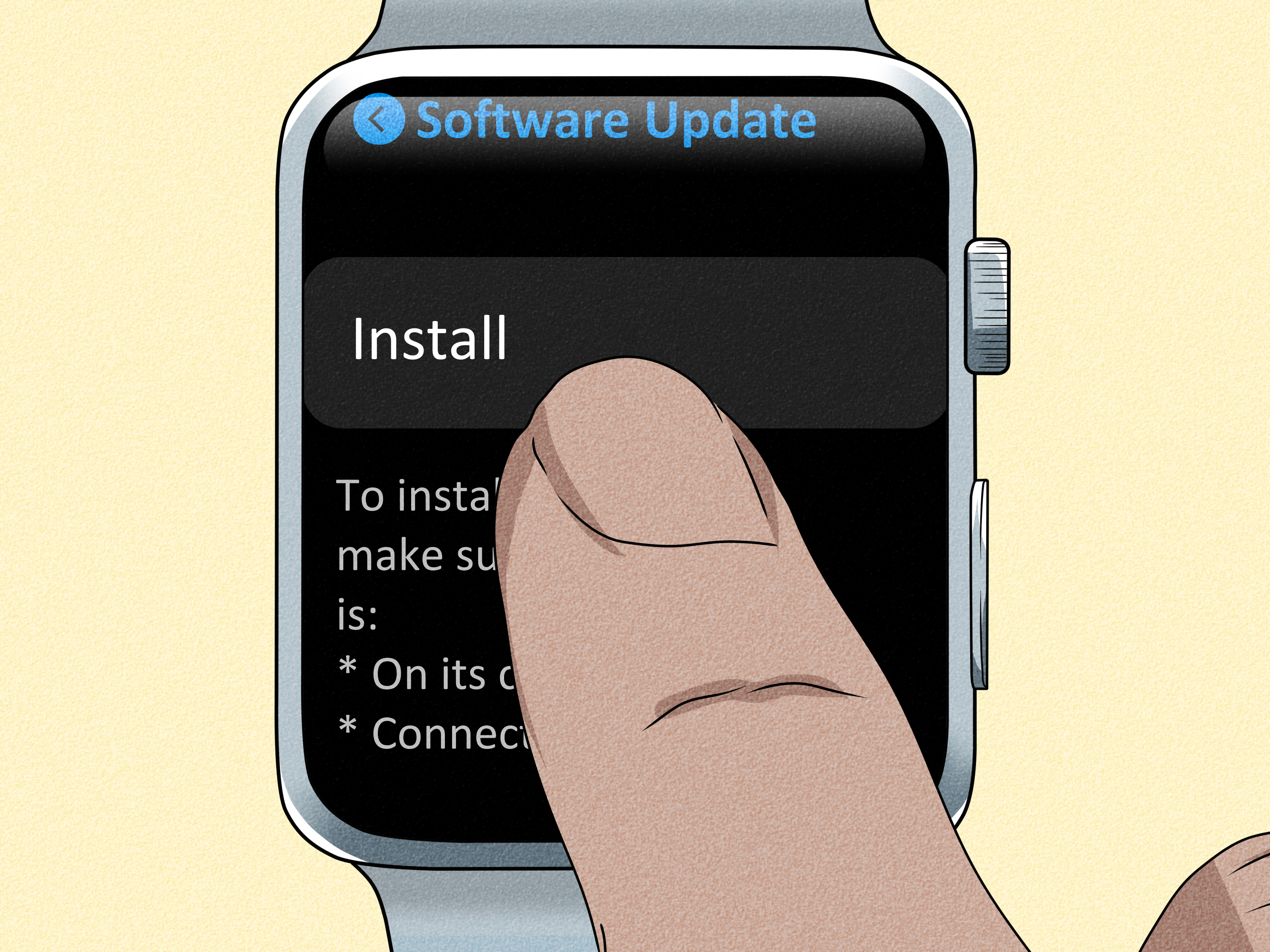
On your iPhone, open the Watch app and go to My Watch > General > Storage. If you see the watchOS update file, delete it. Then go back to General > Software Update and download the update again.
This is the digital version of throwing out a crooked puzzle piece and grabbing a new one.
8. Free up storage on the watch
If the watch is short on storage, the update may fail during verification or installation. Remove unused apps, synced music, or photos if you can access those settings. Storage problems are especially common on older watches and on watches that have been restored from backup several times.
If your watch keeps saying it cannot verify or complete the update, limited space may be the hidden villain.
9. Reset sync data on the iPhone
If the watch and phone seem paired-but-not-paired, or connected-but-acting-like-strangers, resetting sync data can help. In the Watch app on your iPhone, go to General > Reset and use Reset Sync Data. This does not usually wipe the watch, but it can clear broken sync records that are blocking setup or data exchange.
Think of it as relationship counseling for gadgets.
10. Reset network settings on the iPhone
If Bluetooth and Wi-Fi look fine but pairing still fails, resetting network settings on the iPhone may help. Go to Settings > General > Transfer or Reset iPhone > Reset > Reset Network Settings.
Be aware that this will wipe saved Wi-Fi networks, VPN settings, and Bluetooth pairings. So yes, it is mildly annoying. But if your iPhone networking stack is the reason the Apple Watch won’t pair without an update, this can be the fix that finally gets things moving.
If the watch was paired to another iPhone
A hand-me-down Apple Watch, a replacement unit, or a watch you forgot to unpair from an old iPhone can cause setup headaches. If the watch is still linked to another phone, you may need to erase it before pairing again.
On the watch, go to Settings > General > Reset > Erase All Content and Settings. Then start setup again.
One important detail: erasing the watch does not remove Activation Lock unless it is properly unpaired through the original Apple Account. If Activation Lock appears, you will need the Apple Account email and password originally used with that watch. No password, no pairing. Apple is very committed to not helping thieves have a good afternoon.
What if the update still will not verify?
If you get an “Unable to Verify Update” message, focus on three things:
- Check that the watch has a real internet connection through Wi-Fi, cellular, or the paired iPhone.
- Restart the watch and try again.
- Remove media, apps, or clutter to free space.
If that still does not work, unpair the watch, set it up as a new watch, complete the update, and only then restore from backup if needed. Setting up as new is often the cleanest route when a backup keeps dragging old software problems back into the room.
Cellular models can add an extra layer of chaos
If you have a GPS + Cellular Apple Watch, pairing and carrier activation are technically separate steps. In other words, the watch should pair with the iPhone first, and then you handle the cellular setup through your carrier. If you are trying to activate eSIM or NumberSync and getting nowhere, do not confuse that with the initial pairing issue.
For many users, the better path is:
- Pair the watch successfully first
- Update watchOS if needed
- Then go into the Watch app and set up cellular
If you are transferring service from an old phone or old watch, your carrier may also require you to unsync or unpair the previous setup before the new one works correctly.
When beta software is the real problem
This one is sneaky. If the Apple Watch is running beta software and your iPhone is not on a matching compatible version, pairing can fail in spectacularly annoying ways. In some cases, the watch may need Apple service to be restored to public software before it can pair normally again.
If you bought a used watch and it behaves strangely during setup, beta history is worth considering. It is the tech equivalent of buying a used car and later discovering someone taught it bad habits.
What not to do during setup
- Do not try pairing through the regular Bluetooth menu instead of the Watch app.
- Do not restart the watch in the middle of an update unless it is completely frozen.
- Do not assume the latest watchOS is available for every Apple Watch model.
- Do not restore from backup immediately if a clean setup is the only thing getting the update to install.
- Do not forget your Apple Account credentials if Activation Lock appears.
When to contact Apple Support
If you have updated the iPhone, charged the watch, restarted both devices, deleted the update file, tried manual pairing, and erased the watch, but setup still fails, it is time to contact Apple Support. You should also do that if:
- The watch will not charge or will not stay powered on
- The update screen loops endlessly
- The watch seems stuck on beta software
- You suspect a hardware issue with the watch or charger
At that point, more button pressing usually just creates fresh confusion.
Real-world experiences with this pairing problem
One of the most common experiences is buying a newer Apple Watch for an older iPhone and not realizing the phone is the real bottleneck. People often assume the watch itself is broken because it powers on, shows the pairing animation, and then demands an update. But after twenty minutes of failed tries, the real issue turns out to be an iPhone that is two or three software versions behind. Once the phone updates, the watch suddenly behaves like it was innocent the whole time. Convenient.
Another very typical experience happens with gift watches and replacement units. Someone gets an Apple Watch for a birthday, a holiday, or as a warranty replacement, opens it immediately, and expects the setup to take five minutes. Instead, they get hit with a software update screen, a progress wheel that barely moves, and a sinking feeling that they should have made coffee first. In many of those cases, the quickest fix is just patience plus the right setup conditions: charger attached, strong Wi-Fi, updated iPhone, and the Watch app left alone long enough to do its thing.
Used Apple Watches bring their own flavor of chaos. A lot of users buy a secondhand watch, erase it, and assume that means it is fully ready for a new owner. Then they discover the watch still wants the original Apple Account credentials or still behaves like it remembers an old iPhone. That experience can be frustrating because the watch looks reset on the surface, but Activation Lock or a previous setup history is still lurking underneath. In these cases, the watch is not necessarily defective. It just needs a proper unpairing history or the original owner’s cooperation.
Then there is the infamous “stuck preparing” experience. The update appears to download, everything looks promising, and then the watch sits on “Preparing” for what feels like the duration of a modest college degree. Users often think the process is frozen forever, but the real issue is frequently limited storage or a corrupted update file. Deleting the old update, restarting both devices, and trying again solves it far more often than people expect.
Cellular watch owners also run into a weird mental trap: they think carrier setup problems mean the watch did not pair correctly. In reality, the watch may already be paired, while the eSIM or number-sharing feature is what failed. That distinction matters because it changes the fix completely. Pairing problems are usually solved in the Watch app with updates, resets, and clean setup steps. Carrier problems may need account changes, plan transfers, or a call to the wireless provider.
And finally, there is the emotional experience nobody talks about enough: the sheer irritation of having a brand-new gadget tell you it needs a nap, a snack, a charger, a Wi-Fi signal, and a software patch before it will even say hello. If that sounds familiar, welcome to the club. The encouraging part is that most Apple Watch pairing-update problems are not permanent. They are usually just a stack of small conditions that need to line up. Once they do, setup tends to go from impossible to boringly normal in a hurry.
Conclusion
If your Apple Watch won’t pair without an update, the smartest move is to troubleshoot in order instead of trying random fixes like a caffeinated raccoon. Start by updating the iPhone, checking compatibility, charging the watch, and confirming Wi-Fi and Bluetooth are working. Then restart both devices, delete any stuck update file, and try pairing again. If needed, erase the watch and set it up as new before restoring a backup.
Most pairing problems come down to software mismatch, poor connectivity, low battery, limited storage, or old setup data hanging around where it is no longer welcome. Solve those, and your Apple Watch usually stops being dramatic and starts being useful.

