
Beauty Tools & Accessories
How to Activate Mobile Tracking on a Samsung Galaxy Device
Jun
Losing a Samsung Galaxy phone is one of those tiny modern disasters that instantly turns a normal day into a detective movie. One minute your phone is in your hand; the next, it has apparently joined a witness protection program somewhere between the couch cushions, the rideshare, the grocery checkout, and the mysterious black hole known as “I swear I just had it.”
The good news: Samsung Galaxy devices include powerful tools that can help you locate, ring, lock, and even erase your phone remotely. The even better news: setting up mobile tracking on a Samsung Galaxy device is not complicated. You do not need to be a cybersecurity wizard, a private investigator, or the person in your family who “knows routers.” You simply need to activate the right settings before your phone disappears.
This guide explains how to activate mobile tracking on a Samsung Galaxy device using Samsung’s built-in tracking tools, SmartThings Find and Samsung Find, plus Google’s Android Find Hub as a backup. It also covers privacy, safety, troubleshooting, and real-world tips so your Galaxy phone is easier to recover and harder for strangers to misuse.
Important note: Mobile tracking should only be used on your own device or on a device you are authorized to manage. Tracking another person without clear permission is invasive and may be illegal. In other words, use this power for finding your phone, not for becoming the villain in a very boring spy movie.
What Is Mobile Tracking on a Samsung Galaxy Device?
Mobile tracking on a Samsung Galaxy device refers to built-in features that help you find your phone or tablet when it is lost, misplaced, or stolen. Samsung’s main tools are SmartThings Find and Samsung Find. These services can show your device’s location on a map, make it ring, lock it remotely, display a message on the lock screen, erase data, and in some cases use offline finding to help locate a device even when it is not actively connected to a network.
Samsung Galaxy phones also work with Google Find Hub, formerly known as Find My Device. Since Galaxy devices run Android and are usually connected to a Google Account, Google’s tracking system gives you an additional recovery option. Think of Samsung’s tool as the house key and Google’s tool as the spare key under the digital doormatexcept much safer than an actual spare key under a doormat.
Why You Should Activate Tracking Before Your Phone Is Lost
The biggest mistake people make is waiting until the phone is already missing. Unfortunately, phone tracking is not magic. If the right settings were never enabled, your recovery options may be limited. A phone usually needs to be powered on, connected to a mobile or Wi-Fi network, signed in to the right account, and allowed to be located.
Activating mobile tracking early gives you more control in stressful situations. If your Galaxy device slips under a car seat, you can make it ring. If it is left at a coffee shop, you can check its last known location. If it is stolen, you can lock it, protect your data, contact your carrier, and avoid marching into a risky situation like a bargain-bin action hero.
Before You Start: What You Need
Before activating mobile tracking on a Samsung Galaxy device, make sure the basics are in place. First, your phone should be signed in to a Samsung account. Second, it should also be signed in to a Google Account. Third, your device should have a secure screen lock, such as a PIN, password, pattern, fingerprint, or facial recognition. Fourth, Location should be turned on. Fifth, the phone should be connected to mobile data or Wi-Fi whenever possible.
These requirements are not just boring setup chores. They are the foundation of tracking and security. Without an account, Samsung and Google do not know which device belongs to you. Without a screen lock, a finderor thiefmay have an easier time opening your apps. Without location access, your phone becomes harder to place on a map. Basically, every skipped setting is a tiny “good luck, buddy” note to your future self.
How to Activate Samsung Mobile Tracking with SmartThings Find
The easiest way to activate Samsung tracking is through your Galaxy phone’s settings. The exact wording may vary slightly depending on your Galaxy model and One UI version, but the path is generally similar.
Step 1: Open Settings
Unlock your Samsung Galaxy phone and open the Settings app. This is the gear-shaped icon that quietly controls your digital life while pretending to be simple.
Step 2: Go to Security and Privacy
Scroll down and tap Security and privacy. On some Galaxy devices, you may see related sections such as Biometrics and security or Lost device protection. Samsung occasionally adjusts menu names, so do not panic if the wording is not identical.
Step 3: Open Lost Device Protection
Tap Lost device protection. This is where Samsung keeps the key options for locating and protecting your phone remotely.
Step 4: Turn on “Allow This Phone to Be Found”
Enable Allow this phone to be found. This setting gives Samsung’s location services permission to help locate your Galaxy device if it goes missing. If this switch is off, SmartThings Find and Samsung Find may not be able to help much when you need them most.
Step 5: Enable Send Last Location
Turn on Send last location. This feature can send the phone’s last known location before the battery runs out. That is extremely helpful because phones have a dramatic habit of dying at the worst possible moment, usually right after you say, “It still has 6%we’re fine.”
Step 6: Enable Offline Finding
Turn on Offline finding. Offline finding helps your Galaxy device be detected through nearby participating Galaxy devices, using Bluetooth-based signals and the Galaxy finding network. This can improve your chances of locating a device that is not currently connected to Wi-Fi or mobile data.
Offline finding is especially useful for situations where your phone is in a backpack, car, gym locker, or somewhere with weak signal. It is not a guarantee, but it adds another layer of recovery. When it comes to finding a missing phone, layers are good. Lasagna has layers. Security has layers. Your plan should have layers.
Step 7: Check SmartThings Find
Open the SmartThings app on your Galaxy phone. Tap the Life tab, then choose Find or SmartThings Find. From there, confirm that your phone appears on the map and that your connected Galaxy devices are listed. This is a smart moment to test the system while your phone is still safely in your hand, rather than while you are crawling under a restaurant booth with a flashlight.
How to Use Samsung Find or SmartThings Find from a Browser
Once mobile tracking is activated, you can access Samsung’s finding tools from another device. Use a computer, tablet, or another phone and sign in with the same Samsung account connected to your missing Galaxy device.
After signing in, choose your missing device from the list. You may see options such as Ring, Lock, Track location, Erase data, Back up, or Extend battery life. The exact features available can depend on your device model, software version, network status, and account settings.
Use Ring When the Phone Is Nearby
If your Galaxy phone is probably nearby, choose Ring. The device can ring loudly even if it is set to silent or vibrate. This is perfect for the classic “phone under the blanket” emergency, also known as the world’s least impressive treasure hunt.
Use Lock When You Cannot Reach the Phone
If your phone is not nearby, use Lock. You can secure the screen and may be able to display a message with a contact number. A simple message like “This phone is lost. Please call this number” is more useful than “I know what you did,” which is dramatic but not especially practical.
Use Track Location for Movement Updates
If the phone appears to be moving, the tracking option can provide location updates. This can be useful if the device is in a bus, taxi, train, delivery vehicle, or someone’s bag by mistake. If you suspect theft, do not confront anyone. Save the location details and contact local authorities.
Use Erase Data Only as a Last Resort
If recovery seems unlikely and your personal data is at risk, use Erase data. This performs a remote reset and helps protect your information. However, erasing a phone usually means you will no longer be able to track it afterward. Use this option carefully, especially if you have not backed up photos, contacts, notes, or files.
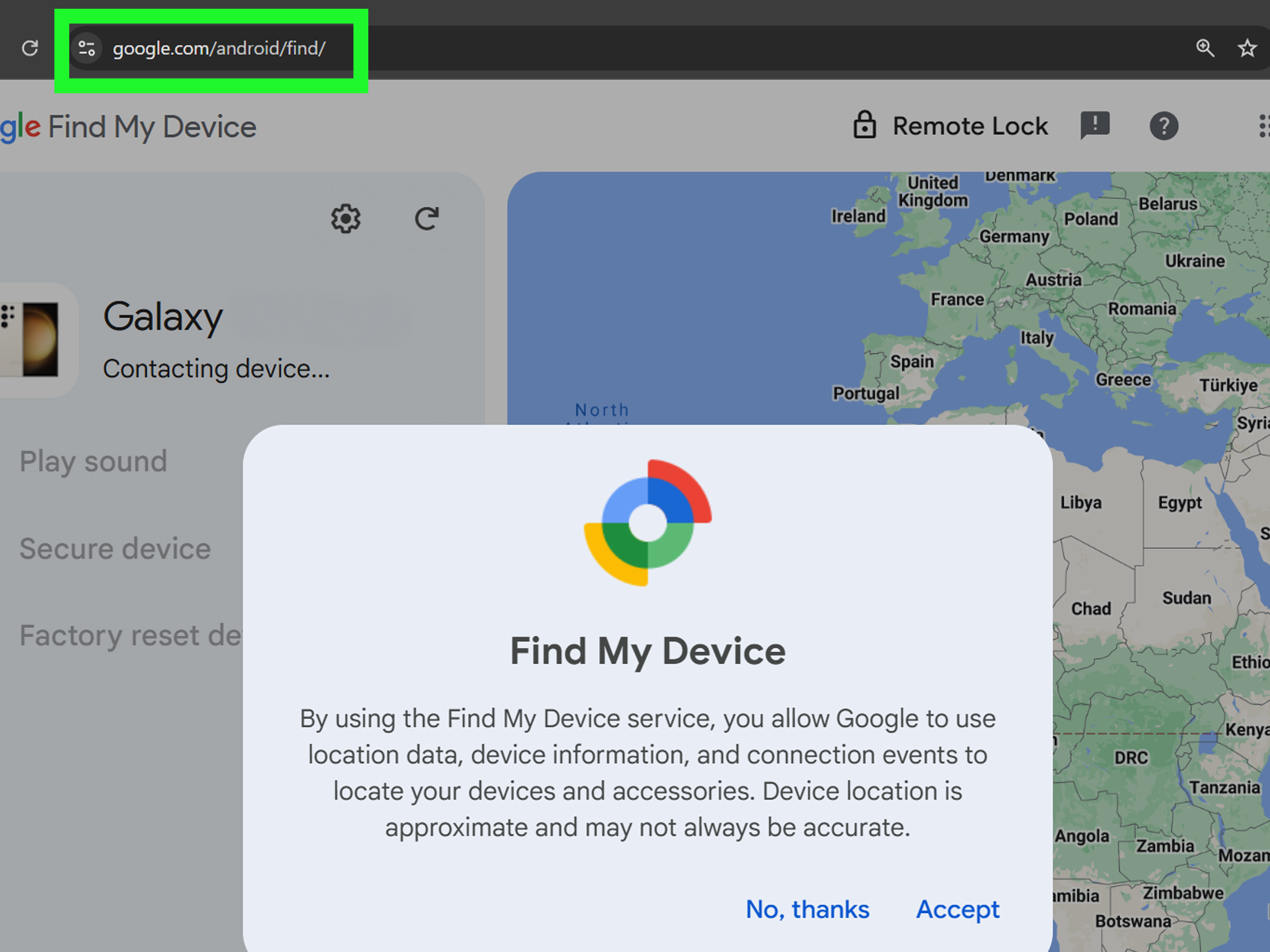
How to Activate Google Find Hub on a Samsung Galaxy Device
Samsung’s tracking tools are excellent, but Google Find Hub is a valuable backup. On many Android devices, Find Hub is enabled automatically when a Google Account is added. Still, it is worth checking.
Step 1: Open Settings
Open Settings on your Galaxy phone.
Step 2: Go to Google Settings
Scroll down and tap Google. This opens Google services connected to your account and device.
Step 3: Find Personal and Device Safety
Look for Personal and device safety or a similar safety-related section. Depending on your Android and One UI version, the menu may be organized slightly differently.
Step 4: Open Find Hub
Tap Find Hub or Find My Device, then make sure the option allowing your device to be located is turned on.
Step 5: Confirm Location and Screen Lock
For the best results, keep Location enabled and use a secure screen lock. Google Find Hub can help locate, ring, lock, or erase your phone, but it works best when your account, network, and security settings are already configured.
Samsung Tracking vs. Google Find Hub: Which Should You Use?
Use both. That is the simple answer.
Samsung SmartThings Find and Samsung Find are deeply connected to Galaxy devices and may offer Samsung-specific options such as offline finding, battery extension, and controls for Galaxy watches, earbuds, tablets, and SmartTags. Google Find Hub works across Android and is tied to your Google Account, making it a strong backup if you cannot access your Samsung account quickly.
Using both services gives you two paths to recovery. If one account has a login issue, the other may still help. If Samsung’s site is not convenient at the moment, Google may be easier to access. If Google does not show the detail you need, Samsung might. Redundancy sounds boring until your phone is missing; then redundancy becomes the hero wearing sensible shoes.
Privacy and Safety Tips Before Enabling Mobile Tracking
Mobile tracking is powerful, so it should be handled responsibly. Start by securing your Samsung and Google accounts with strong, unique passwords. Turn on two-step verification for both accounts. This matters because anyone who gets into your account may be able to see device information or trigger remote actions.
Next, review who has access to your accounts and devices. Do not share passwords casually. Do not leave your Samsung or Google account signed in on public computers. If you use a shared family device, sign out when finished. Mobile tracking is useful because it connects your phone to your identity; that also means your account security is part of your phone security.
You should also be careful with third-party tracking apps. Many promise miracle-level tracking, but some request unnecessary permissions or create privacy risks. For most Galaxy users, Samsung’s built-in tools and Google Find Hub are enough. The best tracking app is often the one already made by the company that built your phone’s ecosystemnot a random app with three reviews and a logo that looks like it was designed during lunch.
What to Do If Your Samsung Galaxy Phone Is Lost
If your Galaxy phone goes missing, start calmly. Panic makes people do weird things, like checking the freezer. Actually, check the freezer if you have toddlers in the housebut after that, use a system.
First, Try Ringing the Device
Open SmartThings Find, Samsung Find, or Google Find Hub from another device and choose Ring or Play sound. If the phone is nearby, this is the fastest solution.
Second, Check the Map
If ringing does not help, check the map. Look for the current or last known location. If the phone is at home, retrace your steps. If it is at a business, call the business. If it is moving or appears somewhere suspicious, do not personally chase it down.
Third, Lock the Phone
Use the remote lock option and add a contact message if available. This protects your data and gives an honest finder a way to return the device.
Fourth, Contact Your Carrier
If the device may be stolen, contact your mobile carrier. They may help suspend service, protect your phone number, and advise you on the IMEI number. Your IMEI is a unique device identifier and is useful when reporting a lost or stolen phone.
Fifth, Change Important Passwords
If you cannot recover the phone quickly, change passwords for your email, banking apps, Samsung account, Google Account, social media, cloud storage, and shopping apps. Start with email because email often controls password resets for everything else.
Sixth, Erase the Phone If Necessary
If recovery seems unlikely or the phone contains sensitive information, use the remote erase option. This is the digital equivalent of closing the vault door. It is not fun, but sometimes it is the smartest move.
Troubleshooting: Why Samsung Mobile Tracking May Not Work
If tracking is not working, there are several common reasons. The phone may be powered off. It may have no internet connection. The battery may be dead. The device may not be signed in to the correct Samsung or Google account. Location may be disabled. Remote controls may not have been turned on. Or the device may not yet have reported a recent location.
Another common issue is account confusion. Many people have more than one Google Account or Samsung account. If your phone does not appear, try signing in with another account you may have used during setup. Yes, this is annoying. Yes, everyone has at least one old account they created in 2017 and immediately forgot. Unfortunately, your phone may remember it better than you do.
Software updates can also change menu names. If you cannot find a setting, use the search bar inside the Settings app and type terms such as “Find,” “Lost device,” “SmartThings Find,” “Offline finding,” or “Find Hub.” Samsung’s settings search is often faster than manually digging through menus like you are exploring a digital attic.
Best Settings to Keep Your Galaxy Easier to Recover
To make your Samsung Galaxy device easier to recover, keep several settings active. Enable Allow this phone to be found, Send last location, and Offline finding. Keep your Samsung account and Google Account signed in. Turn on Location. Use a strong screen lock. Enable two-step verification. Keep mobile data available when possible. Back up your phone regularly.
Also consider writing down your IMEI number and storing it somewhere safe, such as a password manager or a secure document. Do not store it only on the phone, because that is like keeping your spare car key inside the locked car and then applauding your own planning.
Real-World Examples of Samsung Tracking in Action
Imagine you leave your Galaxy phone in a rideshare. SmartThings Find shows it moving across town. Instead of panicking, you lock the phone, display a contact message, and contact the rideshare company. The driver finds it between the seats, where all missing phones apparently go to retire.
Or imagine your phone is somewhere in your house, but it is on silent. Google Find Hub or Samsung Find can make it ring anyway. Suddenly, the couch starts singing, and you recover your phone from a place you definitely already checked three times.
Another example: you lose your Galaxy phone during travel. The battery is low, but Send last location provides a final location near airport security. That clue helps you contact the right lost-and-found desk instead of calling every store in the terminal and slowly losing your faith in humanity.
Common Mistakes to Avoid
Do not wait until your phone is lost to set up tracking. Do not use weak passwords for your Samsung or Google accounts. Do not turn off Location permanently if you rely on tracking. Do not ignore backup settings. Do not install shady tracking apps that ask for every permission under the sun. And most importantly, do not confront a suspected thief based on a map location.
Map locations can be approximate. Apartments, malls, office buildings, and crowded streets can make location data less precise. If theft is suspected, involve the proper authorities and provide the information you have. Your phone is valuable, but you are more valuable. Also, your phone has insurance options. You do not.
Extra Experience Section: What Using Samsung Mobile Tracking Feels Like in Real Life
Using mobile tracking on a Samsung Galaxy device is one of those things that feels unnecessary until the exact second it becomes priceless. Most people activate it with the same emotional energy they use to floss: “Yes, yes, responsible adult behavior, wonderful.” Then one day the phone is gone, and suddenly that tiny switch in Settings feels like the smartest decision you ever made.
In everyday use, the best experience comes from testing the feature before an emergency. Open SmartThings Find while your phone is still with you. Check whether the device appears on the map. Try the ring feature. Confirm that the sound plays loudly. Look at the lock option so you understand what it does. This five-minute test can save you from confusion later, especially when stress turns your brain into mashed potatoes.
One practical lesson is that account access matters as much as phone settings. If your Galaxy phone is missing and your two-step verification code only goes to that missing phone, you may have trouble signing in from another device. To avoid this, set up backup verification methods for your Samsung and Google accounts. Use backup codes, a trusted secondary device, or an authenticator option that you can access safely. This is not glamorous, but neither is standing in a parking lot whispering, “Please let me log in” to a laptop.
Another real-world tip: keep your lock screen message simple when locking a lost phone. A clear message with a safe contact number works better than a long emotional essay. Something like “Lost phone. Please call this number. Reward offered.” is enough. You want to make returning the phone easy, not assign the finder a reading comprehension test.
Battery life is another major factor. Tracking works best while the phone still has power. That is why Send last location and battery-saving options are worth enabling. If your phone is at 3%, you are not in a tracking mission; you are in a countdown scene. Keep portable charging habits in mind, especially when traveling, commuting, or attending events.
Offline finding can be helpful, but expectations should be realistic. It may depend on nearby compatible Galaxy devices and whether the missing phone can be detected. In a busy city, the odds may be better. In a remote field where the nearest device is a suspiciously judgmental cow, maybe not. Treat offline finding as an extra safety net, not a guarantee.
The most important experience-based advice is to combine tracking with prevention. Use a strong PIN, not 1234, your birthday, or the four digits your sibling could guess while half asleep. Enable biometrics, but keep a strong backup password. Back up photos and important files. Review app permissions. Keep your software updated. A phone recovery plan is not just about finding a rectangle of glass; it is about protecting your identity, money, memories, and accounts.
Finally, remember that mobile tracking is a tool, not a superhero cape. It can guide you, alert you, and help secure your data. It cannot promise recovery in every situation. But when activated properly, Samsung mobile tracking gives you a fighting chanceand sometimes that is the difference between “I lost my phone forever” and “It was under the passenger seat, judging me silently.”
Conclusion
Activating mobile tracking on a Samsung Galaxy device is one of the simplest ways to protect your phone before anything goes wrong. By turning on Samsung’s Lost device protection, enabling SmartThings Find or Samsung Find, activating Send last location and Offline finding, and confirming Google Find Hub is available, you create a practical safety system for everyday life.
The setup only takes a few minutes, but the payoff can be huge. You can ring a misplaced phone, locate it on a map, lock it remotely, show a return message, extend battery life, or erase data if necessary. More importantly, you can respond calmly when your phone disappears instead of sprinting through your house accusing innocent furniture.
Use these tools responsibly, secure your accounts, keep backups current, and test your settings before an emergency. Your future selfthe one not crawling under a café table in panicwill be deeply grateful.

